---
title: "Modifier Groups: Configuring Nested Modifiers"
description: Nested Modifiers allow you to associate a modifier group to an option within an existing modifier group, adding additional options to select for guests in the event the modifier option is selected. T
---
[Skip to content](https://help-center.readytopay.com/modifier-groups-configuring-nested-modifiers#main-content)
English
Show submenu for translations
![Ready-colour-logo-2.png\]](https://help-center.readytopay.com/hs-fs/hubfs/Ready-colour-logo-2.png?height=32&name=Ready-colour-logo-2.png)
- [Restaurants](https://help-center.readytopay.com/restaurants)
- [Stadiums](https://help-center.readytopay.com/stadiums)
- [Press](https://help-center.readytopay.com/blog)
- [Careers](https://readytopay.applytojob.com/apply)
- [Email Support](mailto://support@readytopay.com)
Open main navigation
Close main navigation
- [Restaurants](https://help-center.readytopay.com/restaurants)
- [Stadiums](https://help-center.readytopay.com/stadiums)
- [Press](https://help-center.readytopay.com/blog)
- [Careers](https://readytopay.applytojob.com/apply)
- [Email Support](mailto://support@readytopay.com)
- English
Show submenu for translations
Welcome! How can we help?
- There are no suggestions because the search field is empty.
1. [Help Center](https://help-center.readytopay.com/?hsLang=en)
2. [Ready Dashboard](https://help-center.readytopay.com/ready-dashboard?hsLang=en)
3. [Location Menus](https://help-center.readytopay.com/ready-dashboard?hsLang=en#location-menus)
# Modifier Groups: Configuring Nested Modifiers
Nested Modifiers allow you to associate a modifier group to an option within an existing modifier group, adding additional options to select for guests in the event the modifier option is selected. This allows for more advanced setup of modifier groups for select point-of-sale systems which support this configuration.
Currently, locations using one of the following point of sale systems can configure nested modifiers:
- Par Brink
- POSitouch\*
- \* Nested Modifiers for POSitouch are collapsed into a single level of modifiers for the POS check/chit
- NCR Aloha
Connections of modifier options to modifier groups can be chained together to create up to 5 levels of nesting for a modifier group. For example:
- ***Modifier Group: First Side***
- Option: Fries
- Option: Salad
- **Option: Baked Potato**
- ***Modifier Group: Baked Potato Options***
- Option: Everything
- Option: Cheese
- Option: Sour Cream
- Option: Butter
- Option: Bacon
- Option: Chives
- Option: Plain
- Option: No Salt
- **Option: Extra Toppings**
- ***Modifier Group: Extra Potato Toppings***
- Option: Cheese
- Option: Sour Cream
- Option: Butter
- Option: Bacon
- Option: Chives
In the example setup above we have three levels of modifier groups linked together. When setting up nested modifiers in the Menu Builder, we start with the lowest-level modifier group, in this case **Extra Potato Toppings**. This modifier group is configured in Menu Builder like a standard modifier group. From there, the **Baked Potato Options** modifier group would be configured like a standard modifier group, then the **Extra Potato Toppings** modifier group would be linked to the **Extra Toppings** option, linking the two modifier groups together. From there, the **First Side** modifier group is configured like a normal modifier group, and then the **Baked Potato Options** modifier group would be linked to the **Baked Potato** option.
# Viewing Modifier Groups Linked to a Modifier Option
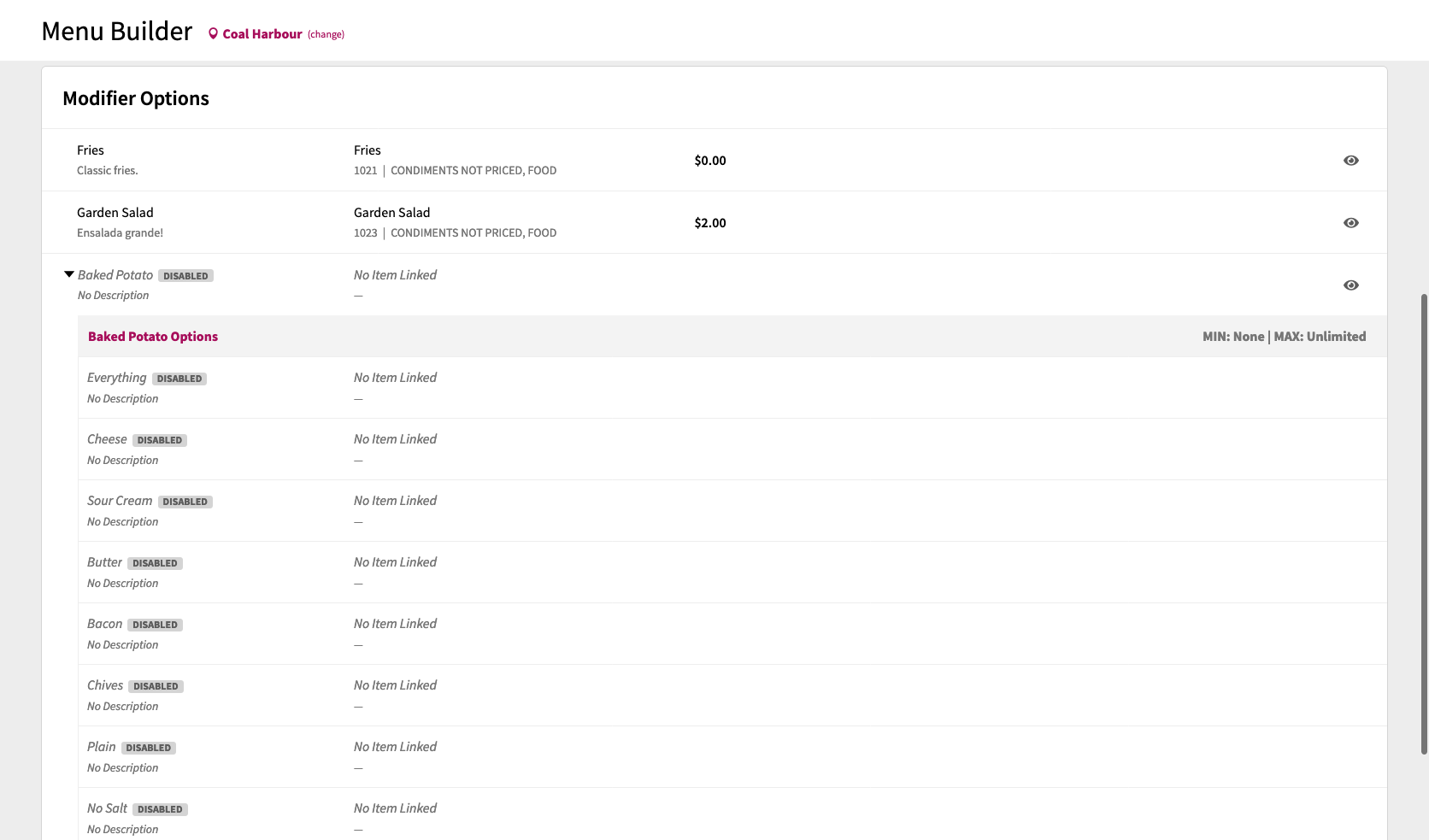
When a modifier option has one ore more modifier groups linked to it, an arrow icon will appear next to the modifier option title:

Clicking on the arrow icon will reveal the modifier group(s) that are linked to the modifier option. Additionally, if any of the linked modifier groups contain options which have more modifier groups linked to it, you'll be able to expand deeper into that link to show the full chain of linked modifier groups.
# Linking a Modifier Group to a Modifier Option
To link a modifier group to a Modifier Option:
1. Open the Modifier Group containing the Modifier Option you want to link
2. Click the **Edit** button to go into Modifier Group edit mode
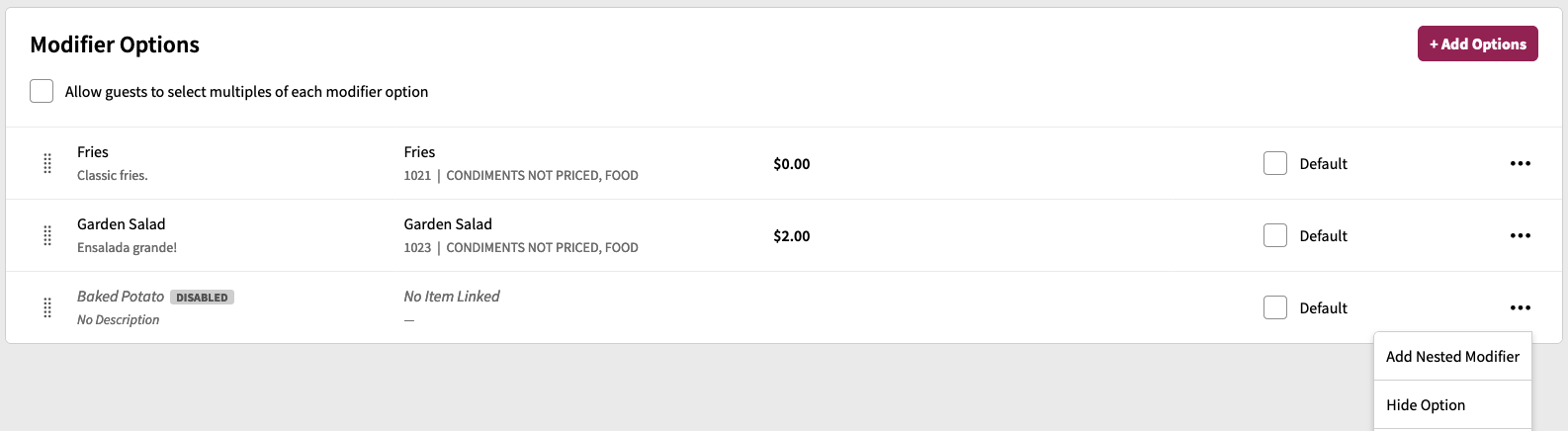
3. Click the **...** button on the Modifier Options to create the link
4. Click **Add Nested Modifier**
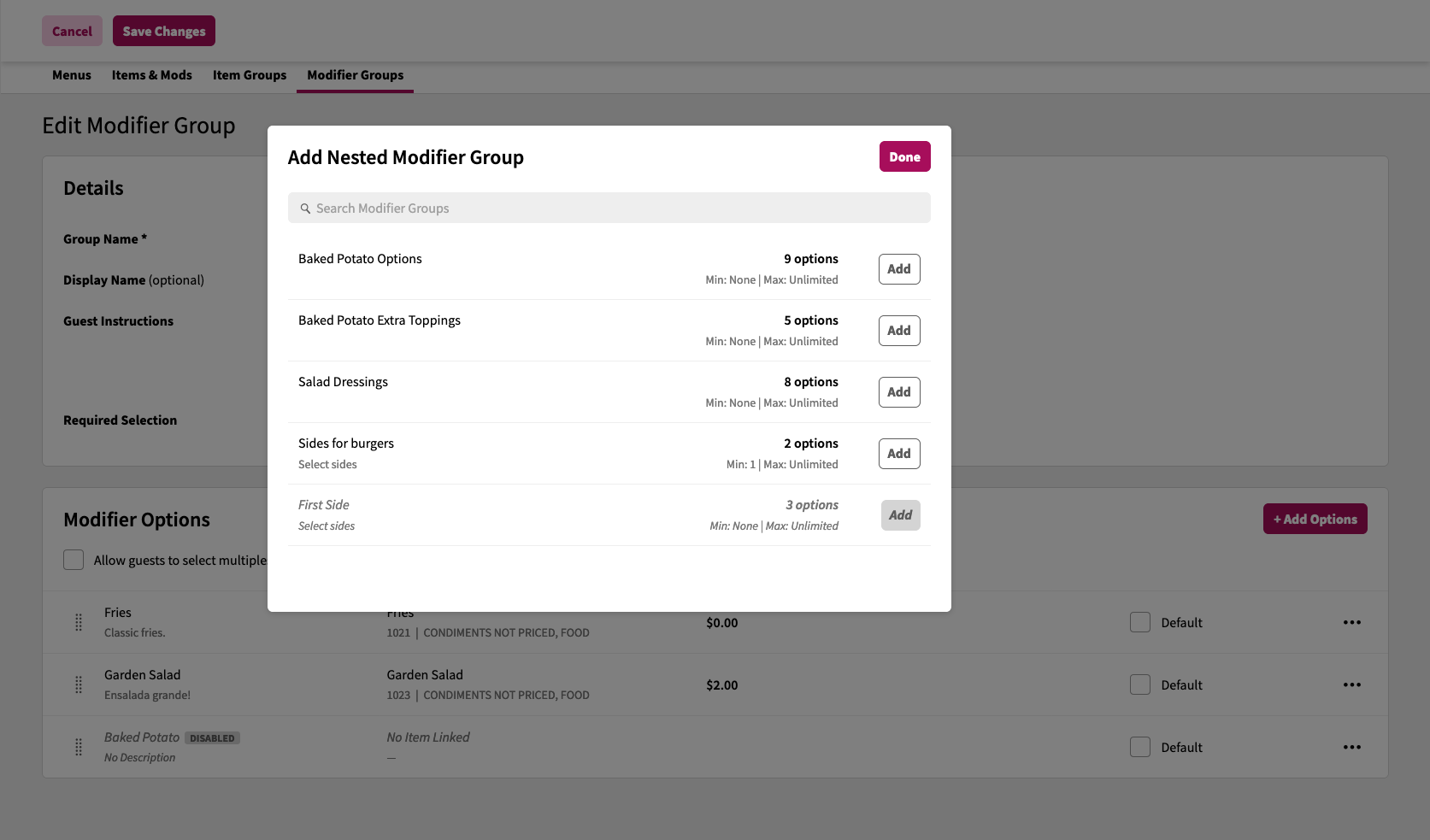
5. The **Add Nested Modifier Group** modal will appear. Click **Add** on the Modifier Group(s) you want to link to the Modifier Option
6. Click **Done**
7. Click **Save Changes**
# Re-ordering linked Modifier Groups on a Modifier Option
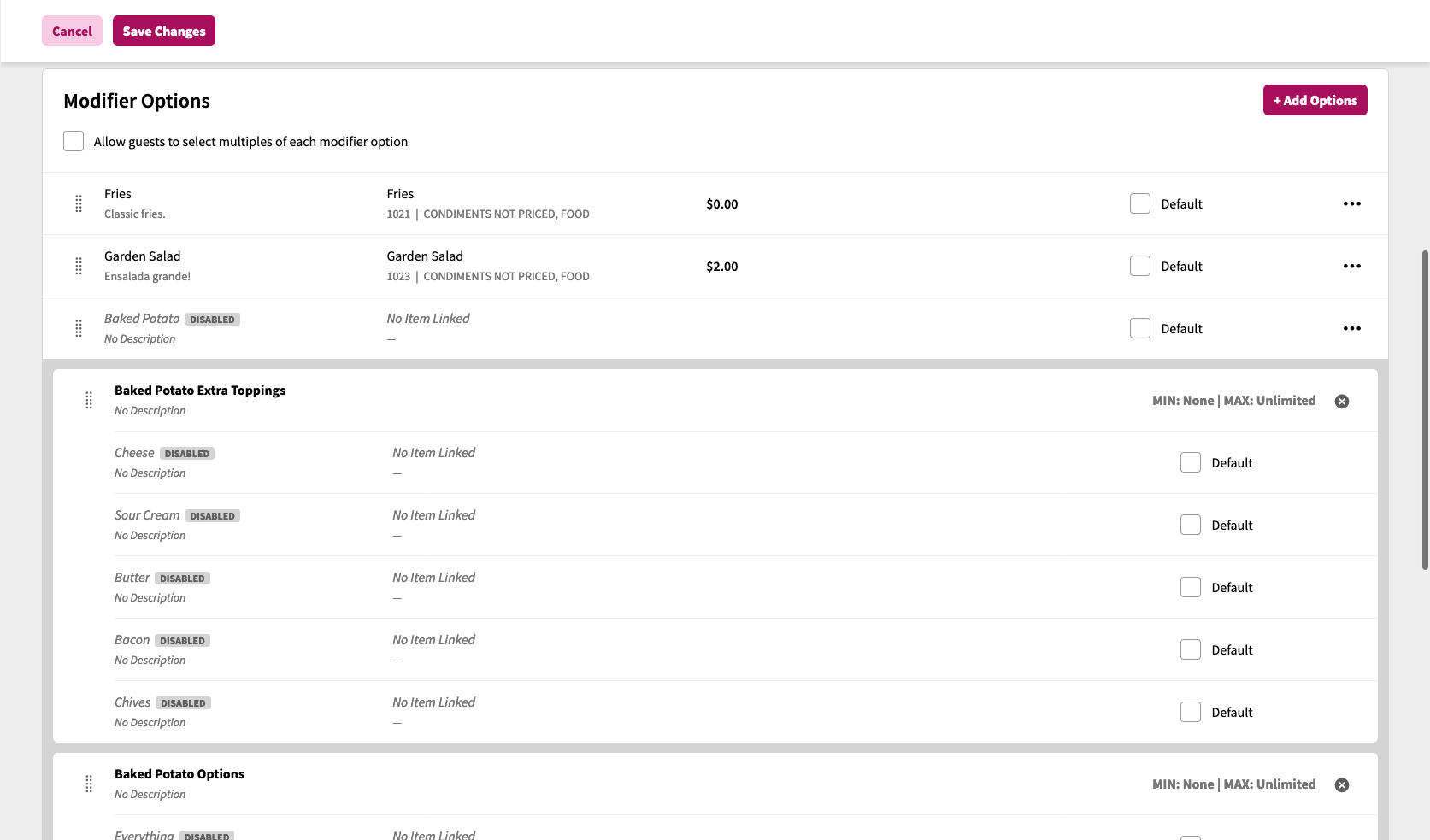
When there are more than one modifier groups linked to a modifier option, the order in which these additional modifier groups will show to a guest when that modifier option is selected can be customized.
To re-order the list of linked Modifier Groups on a Modifier Option:
1. Open the Modifier Group containing the Modifier Option you want to re-order
2. Click the **Edit** button to go into the Modifier Group edit mode
3. Click and drag the linked modifier groups via the grabber icon () in the new order you wish to set
4. Click **Save Changes**
# Removing a Modifier Group Link from a Modifier Option
To remove a linked modifier group from a Modifier Option:
1. Open the Modifier Group containing the Modifier Option you want to de-link
2. Click the **Edit** button to go into Modifier Group edit mode
3. Click the **x** icon on the linked Modifier Group
4. Click **Save Changes**
****
- [Getting Started](https://help-center.readytopay.com/getting-started?hsLang=en#main-content)
- [Compatible POS Systems](https://help-center.readytopay.com/getting-started?hsLang=en#compatible-pos-systems)
- [Supported Payment Options](https://help-center.readytopay.com/getting-started?hsLang=en#supported-payment-options)
- [Ready Dashboard](https://help-center.readytopay.com/ready-dashboard?hsLang=en#main-content)
- [Reports](https://help-center.readytopay.com/ready-dashboard?hsLang=en#reports)
- [Orders](https://help-center.readytopay.com/ready-dashboard?hsLang=en#orders)
- [Server Assignment](https://help-center.readytopay.com/ready-dashboard?hsLang=en#server-assignment)
- [Users](https://help-center.readytopay.com/ready-dashboard?hsLang=en#users)
- [Security Roles](https://help-center.readytopay.com/ready-dashboard?hsLang=en#security-roles)
- [Shared Menus](https://help-center.readytopay.com/ready-dashboard?hsLang=en#shared-menus)
- [Location Menus](https://help-center.readytopay.com/ready-dashboard?hsLang=en#location-menus)
- [Schedules](https://help-center.readytopay.com/ready-dashboard?hsLang=en#schedules)
- [Tags & Badges](https://help-center.readytopay.com/ready-dashboard?hsLang=en#tags-badges)
- [Location Settings](https://help-center.readytopay.com/ready-dashboard?hsLang=en#location-settings)
- [Company Settings](https://help-center.readytopay.com/ready-dashboard?hsLang=en#company-settings)
- [Announcements](https://help-center.readytopay.com/announcements?hsLang=en#main-content)
- [Release Notes](https://help-center.readytopay.com/announcements?hsLang=en#release-notes)
- [Status](https://help-center.readytopay.com/announcements?hsLang=en#status)
- [Video Library](https://help-center.readytopay.com/video-library?hsLang=en#main-content)
- [How-to Videos](https://help-center.readytopay.com/video-library?hsLang=en#how-to-videos)
- [Webinars](https://help-center.readytopay.com/video-library?hsLang=en#webinars)
- [Troubleshooting](https://help-center.readytopay.com/troubleshooting?hsLang=en#main-content)
- [Ready Dashboard](https://help-center.readytopay.com/troubleshooting?hsLang=en#ready-dashboard)
- [Mobile App](https://help-center.readytopay.com/troubleshooting?hsLang=en#mobile-app)
- [FAQ](https://help-center.readytopay.com/faq?hsLang=en#main-content)
- [Mobile App](https://help-center.readytopay.com/faq?hsLang=en#mobile-app)
- [Transactions](https://help-center.readytopay.com/faq?hsLang=en#transactions)
- [Client Website](https://help-center.readytopay.com/faq?hsLang=en#client-website)
- [ServerFlow](https://help-center.readytopay.com/serverflow?hsLang=en#main-content)
- [ServerFlow for Tablets](https://help-center.readytopay.com/serverflow?hsLang=en#serverflow-for-tablets)
- [Restaurants](https://help-center.readytopay.com/restaurants)
- [Stadiums](https://help-center.readytopay.com/stadiums)
- [Press](https://help-center.readytopay.com/blog)
- [Careers](https://readytopay.applytojob.com/apply)
- [Email Support](mailto://support@readytopay.com)
[](https://readytopay.com/)
Copyright © 2026, Ready to Pay Software